What Do You Need?
With WiFi enabled
Stable connection
Ready to configure
Of your time
Important
SmartTemp sensors only connect to 2.4GHz WiFi networks. 5GHz networks are not compatible due to sensor hardware limitations. Most home and business routers support 2.4GHz, so compatibility should not be an issue.
Configuration Process
-
Power On the Sensor
Connect your SmartTemp sensor to power. You'll see the built-in LED begin to blink intermittently, indicating that it is in configuration mode (AP Mode). -
Connect to the Captive Portal
Open your smartphone's WiFi settings and look for a network calledSmartTemp_XXXXXX. Connect to this network (no password required). -
Configure the WiFi Network
The portal will open automatically. Select your home WiFi network, enter the password and assign a descriptive name to the sensor. -
Verify the Connection
The sensor will restart automatically. The LED will change to a steady light indicating a successful connection and it will appear on your SmartTemp dashboard.
Setup Successful!
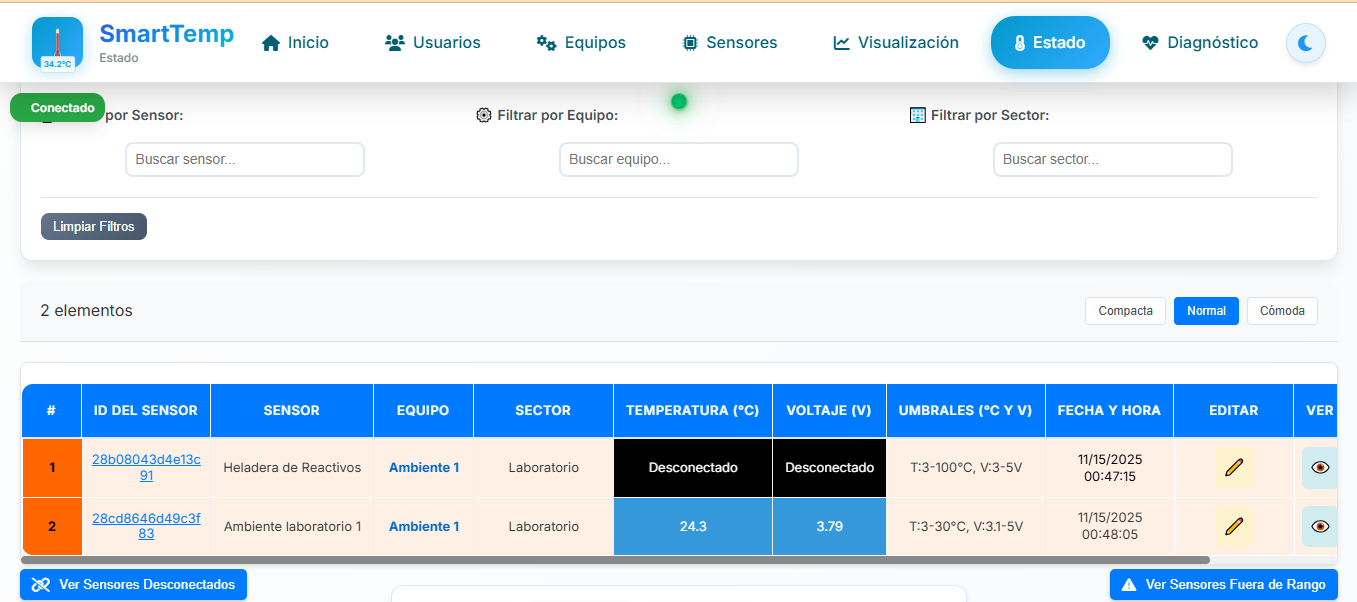
Your sensor is now sending temperature data in real time to the SmartTemp system.
Troubleshooting
❌ I don't see the SmartTemp_XXXXXX network
Solution: Disconnect and reconnect the sensor's power. Wait 30 seconds for it to enter configuration mode.
❌ The portal doesn't open
Solution: Turn off mobile data and go manually to
192.168.4.1 in your browser.
❌ WiFi password error
Solution: Verify that your network is 2.4GHz and that the password is correct. Avoid special characters.
Advanced Configuration
For advanced users, the portal also allows you to:
- Configure a static IP: Useful for business networks
- Adjust the sending interval: From 1 second to 10 minutes
- Configure a custom server: For on-premise installations
- Enable debug mode: For technical diagnostics
// Advanced configuration in config_sensor.h
#define WIFI_SSID "YourWiFiNetwork"
#define WIFI_PASSWORD "YourPassword"
#define SERVER_URL "https://your-server.com"
#define SEND_INTERVAL 30000  // 30 seconds
Need Technical Help?
Our team of engineers is available to assist you with configuration and answer any technical questions.